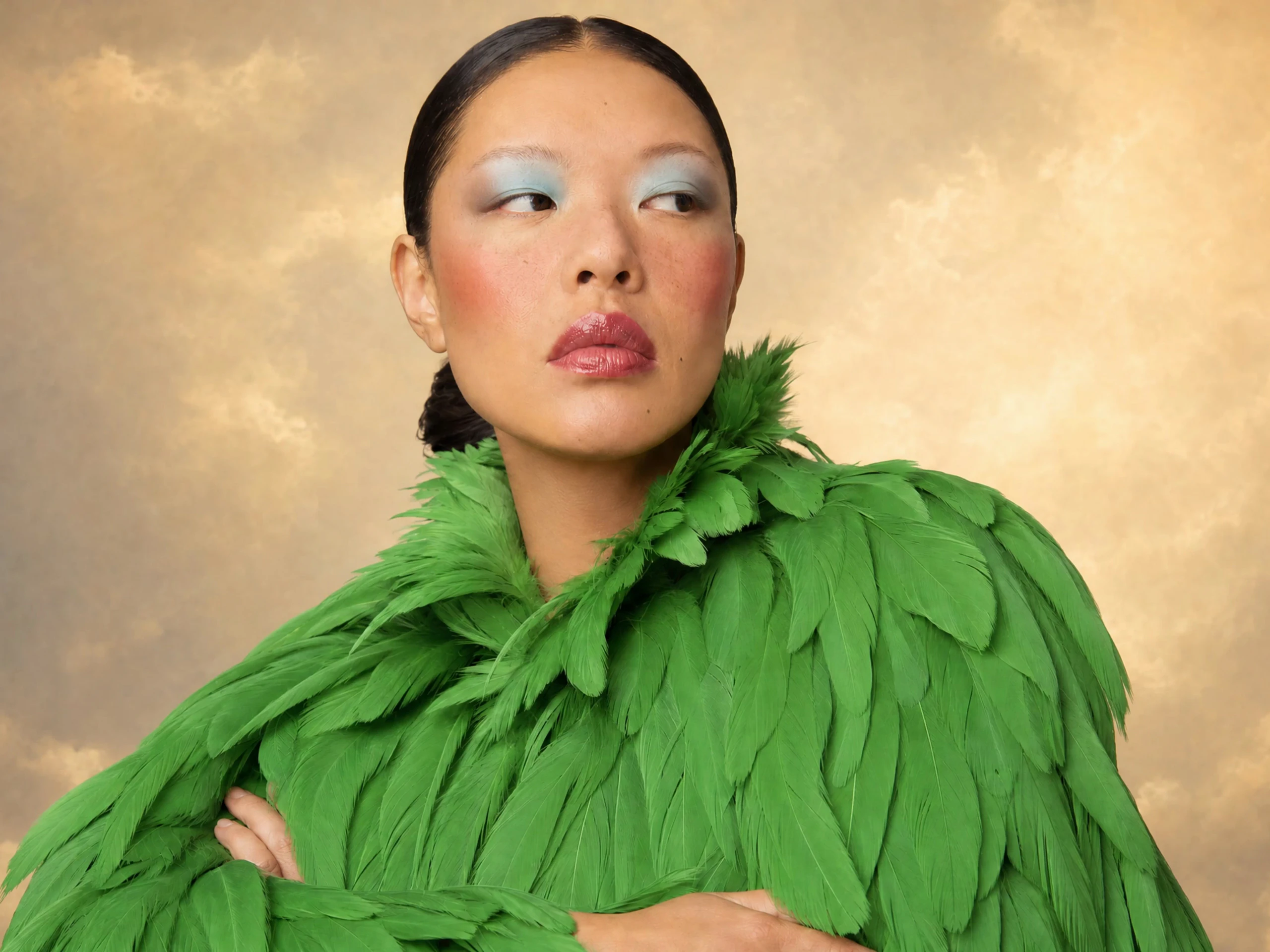
Content creators & influencers
Make TikToks, Reels, Shorts and stories with cinematic shots, animated characters, and trend-ready visuals in a few clicks.
Meet the new Pikaformance talking-face model and the upgraded Pika AI 2.5 video engine. Turn voices into lifelike performances and prompts into sharper, smoother cinematic clips all in seconds.
Pikaformance turns any voice track into a hyper real performance just add an image, drop in your audio, and watch faces sing, speak, and react in near real time. Perfect for AI presenters, memes, music clips, and shorts.
Pika 2.5 is Pika's upgraded video engine, delivering sharper visuals, smoother camera motion, and more reliable styles from every prompt. Perfect for turning quick ideas into polished, cinematic clips for TikTok, Reels, Shorts, and ads.
Pika AI is an AI video generator that helps you create short, cinematic clips using text prompts, images, and (for certain modes) audio-driven performance. Whether you’re building a TikTok page, growing an Instagram Reels account, producing YouTube Shorts, or testing ad creatives, Pika AI is built for fast iteration and visual impact.
If you’ve ever struggled with:
then Pika AI is made for you. It’s designed to turn a simple idea into multiple video variations quickly so you can publish faster, test more, and improve your content based on real results.
Let’s be honest: most people searching “Pika AI” aren’t looking for a long history lesson. They want answers like:
“How do I use it?”
“Is it free?”
“What’s the best prompt?”
“What are Pikaffects?”
“How does lip sync work?”
“Is Pika better than Runway?”
That’s exactly what we publish on pikaais.com: beginner-friendly guides, feature breakdowns, prompt templates, comparisons, and practical tips you can use immediately.
What you’ll find here:
Step-by-step tutorials for first-time users
Clear explanations of Pika’s popular tools and modes
Troubleshooting and quality improvement tips
Comparisons (Pika vs Runway and more)
Simple pricing/credits guides written in plain language
Pika AI is an AI video generator created by Pika Labs that turns simple inputs like text, images, or short video clips into animated videos. You type a prompt or upload an image/clip, and Pika AI creates a short video in styles like cinematic, anime, 3D, or cartoon.
In short, Pika AI lets anyone generate short, eye-catching videos with AI instead of manual video editing.
Type a scene description, upload an image, or drop in a short clip and watch Pika AI turn it into a dynamic video in seconds.
Start Creating with Pika AIPika AI is designed for anyone who needs high-impact video without spending days inside complex editing software.
Make TikToks, Reels, Shorts and stories with cinematic shots, animated characters, and trend-ready visuals in a few clicks.
Generate product teasers, ad concepts, animated banners and logo reveals to test campaigns quickly and cheaply.
Turn abstract ideas into explainer clips, course intros and concept demos using animated visuals and AI presenters.
Animate concept art, create mood scenes and stylized shorts to explore worlds, characters and story moments in minutes.
Produce launch videos, pitch visuals and product mockups without a studio or production crew – just your browser.
Pika AI (also known as Pika Labs) is an AI video generator that turns simple text prompts, images, or short clips into dynamic videos. In this guide, you’ll learn exactly how to use Pika AI from scratch—even if you’ve never used an AI video tool before.
We’ll start with the basics: how to access Pika (web or Discord), create your first project, and use prompts to generate short clips. Then we’ll walk through practical workflows like turning images into moving scenes, refining results with variations, and adjusting key settings such as aspect ratio, duration, and camera motion. Along the way, you’ll see how to add effects, experiment with different styles, and export your final videos for TikTok, Reels, YouTube Shorts, or ads.
By the end, you’ll know how to:
Sign up and get into Pika AI
Write effective prompts that produce better videos
Use image-to-video to bring still photos to life
Tweak settings (length, style, resolution) to match your idea
Save, download, and reuse your best creations
Whether you’re a content creator, marketer, or just curious about AI video, this “How to Use Pika AI” walkthrough will show you how to go from blank screen to share-ready video in just a few minutes no editing experience required.
Pika AI works best for short, high-impact videos. The sweet spot is content that needs a “wow moment” quickly.
Here are proven categories people create:
These are the clips where something changes:
an object melts,
a character inflates,
a photo becomes cinematic,
a simple scene turns into a stylized animation.
Transformations are powerful because they work even when the viewer has zero context.
Text-to-video can generate mini “movie moments”:
neon city walks,
dreamy landscapes,
fantasy shots,
cinematic close-ups,
dramatic lighting scenes.
These clips can be used for intros, transitions, or mood content.
If you want a face or character to:
speak,
sing,
narrate,
react,
performance-style tools can create an animated “talking head” from an image.
This is popular for:
meme content,
channel mascots,
explainer intros,
voiceover hooks.
Marketers can create:
animated product scenes,
background motion,
reveal effects,
attention-grabbing variations.
Even a simple product image can become a moving clip.
If you’re building a travel page (or lifestyle brand), you can:
animate photos,
create stylized transitions,
generate cinematic b-roll style clips,
add motion to landscapes.
Many sites list features like a brochure. This section is different: it’s written for people who actually create.
Text-to-video is your go-to when you want Pika to generate a scene from scratch.
Best for:
imaginative concepts
cinematic scenes
quick content hooks
background b-roll style clips
Tip for better results:
Use a structure like:
Subject + Action + Setting + Style + Camera
Example:
“A traveler walking through a rainy neon street at night, cinematic lighting, shallow depth of field, slow camera push-in.”
This gives the model clear direction.
Image-to-video is ideal when you need:
a consistent person,
a specific product,
a specific travel location,
a consistent brand character.
Instead of letting the model “invent” everything, you anchor it to your image and ask for motion.
Best for:
portraits
brand visuals
product shots
travel photos
creators who want identity stability
Tip:
Use clean images where the main subject is large and well-lit.
Pikaffects are designed to produce quick “wow transformations.” These are the effects that make viewers stop scrolling.
Why Pikaffects are powerful:
You don’t need long prompts.
You don’t need editing software.
You can create “before → after” visual hooks in seconds.
Common effect styles include:
“melt” transformations
“explode” reveals
“squish” comedy effects
“inflate/deflate” physics-bending visuals
dissolve/crumble transitions
Best for:
meme videos
product reveals
logo animations
“scroll stopper” hooks
If you want an image to:
speak,
sing,
rap,
react to audio,
performance tools focus on facial movement + lip sync driven by sound.
Best for:
talking photo content
channel mascots
voiceover hooks
audio memes
character reactions
Tip for quality:
Use clean audio (clear voice) and a portrait image with the mouth visible.
The real advantage of Pika AI isn’t just “AI video.” It’s iteration speed.
Creators win by:
generating 3–5 versions,
choosing the best,
refining one detail at a time,
publishing consistently.
If you’re trying to grow on social media, output volume matters—and Pika is built for that.
If you’re new, here is the simplest workflow that works consistently:
Ask yourself:
“Is this for TikTok/Reels/Shorts?”
“Do I need a realistic scene or stylized animation?”
“Do I need a consistent person/product?”
That decides whether you choose text-to-video or image-to-video.
Instead of generating long clips immediately:
generate short versions first,
pick the best,
only then create your final.
This saves time and credits.
If the output is “almost good,” don’t rewrite everything. Change just one:
lighting
camera movement
action
style keywords
background complexity
That’s how pros refine quickly.
Once you get good results, save the prompt formula you used. You can reuse it every time.
You don’t need editing skills or complex timelines. Follow these three steps to turn an idea into a short video using Pika AI.
Type a text prompt, upload a still image, or import a short video clip. This becomes the starting point for your scene.
Choose how your video should feel. Pika lets you set the style, motion strength, and basic camera moves.
Hit generate and get a short clip in seconds. If you don’t love it yet, tweak the prompt or settings and regenerate.
Great prompts are the key to getting cinematic, on-style results from Pika AI. Describe not just what you want to see, but also the camera, lighting and mood.
Use these templates to get cleaner outputs:
“A [subject] [action] in [setting], cinematic lighting, realistic motion, shallow depth of field, film look, slow camera push-in.”
Example:
“A young woman walking through a misty forest at sunrise, cinematic lighting, realistic motion, shallow depth of field, film look, slow camera push-in.”
“A [subject] [action] in [setting], anime style, clean outlines, vivid colors, smooth motion, gentle camera pan.”
“A clean product shot of [product] on a minimal background, studio lighting, subtle camera movement, premium commercial style.”
“Single subject centered, clean background, smooth transformation, no extra objects, clear edges.”
“A cinematic shot of [place], golden hour lighting, smooth motion, drone-like camera glide, high detail, natural colors.”
Most beginners fail because of a few predictable reasons. Here’s the fix list.
Fix:
reduce the number of objects in your prompt
specify “clean background” or “minimal scene”
focus on one subject and one action
Fix:
choose simpler actions (walking, turning, smiling)
avoid “fighting, exploding, many people” early on
start with medium motion strength and adjust
Fix:
use image-to-video with a high-quality portrait
keep lighting consistent
avoid extreme angles
avoid face coverings blocking the mouth
Fix:
add 1–2 specific cues (camera + style)
remove conflicting style words
try a shorter prompt with clearer intent
If you want to grow an account, here’s the truth: consistency wins. The fastest creators publish the most tests.
Here’s a proven approach:
Examples:
“AI travel scenes” (cinematic b-roll)
“AI talking character” (voiceover hooks)
“viral transformation effect” (Pikaffects)
“product reveal ads” (marketing)
Instead of creating one video per day, do a batch:
generate 10 drafts
keep the top 3–5
schedule posts
Look at:
watch time,
saves,
shares,
comments.
Then remake the same format with a different theme.
Pika AI makes this easy because you can reuse prompt templates.
Most AI video tools use:
Subscriptions, and/or
A credit system.
Pika AI generally works the same way:
Free access for testing
Paid plans for more credits and more output
Because plans can change, the best approach is:
Use your free tier to learn prompts
Upgrade only when you consistently create content
Credit-saving rule (most important):
Generate short drafts → refine → generate finals.
Each tool in Pika AI uses credits based on quality, duration, and model. Here’s a quick breakdown of how many credits you’ll spend.
| Type | Duration | Credits + Plan |
|---|---|---|
| Image-to-Video | 5s | 15 credits Free |
| Video-to-Video | 5s | 18 credits Paid |
| Quality | Duration | Model 2.2 |
|---|---|---|
| 720p | 5s / 10s | 15 / 30 credits Paid |
| 1080p | 5s / 10s | 35 / 100 credits Paid |
| Model + Quality | Duration | Credits + Plan |
|---|---|---|
| Turbo 720p | 5s | 60 credits Free |
| Pro 1080p | 5s | 80 credits Paid |
| Model + Quality | Duration | Credits + Plan |
|---|---|---|
| Turbo 720p | 5s | 10 credits Free |
| Pro 1080p | 5s | 20 credits Paid |
| Quality | Duration | Model 2.5 |
|---|---|---|
| 480p | 5s / 10s | 12 / 24 credits Free Paid |
| 720p | 5s / 10s | 20 / 40 credits Paid |
| 1080p | 5s / 10s | 40 / 80 credits Paid |
| Duration | Model 2.5 |
|---|---|
| 5s | 12 credits Free |
| 10s | 24 credits Paid |
| 10–15s | 36 credits Paid |
| 15–20s | 48 credits Paid |
| 20–25s | 60 credits Paid |
| Quality | Durations | Model 2.5 |
|---|---|---|
| 720p | 5s · 10s · 10–15s · 15–20s · 20–25s | 20 · 40 · 60 · 80 · 100 credits Paid |
| 1080p | 5s · 10s · 10–15s · 15–20s · 20–25s | 40 · 80 · 120 · 160 · 200 credits Paid |
| Quality | Audio Duration | Credits + Plan |
|---|---|---|
| 720p | Up to 10s | 3 credits / second Free |
| 720p | Up to 30s | 3 credits / second Paid |
Pika Labs free credits per day refers to the small amount of usage you get on the Free/Basic plan, where your account includes a limited number of video credits each month. Each text-to-video, image-to-video, or effect generation consumes a few credits, so how many clips you can create in a single day depends on how quickly you use that monthly pool.
On the free plan, users typically:
Get a modest amount of credits to try Pika (enough for a handful of short clips).
Spend credits every time they generate or upscale a video.
Can “spread” those credits across days (e.g., a few clips per day) until the monthly allowance runs out.
Need to wait for the next monthly reset or upgrade to a paid plan for more credits.
A limited monthly bucket of free credits
Which you choose to use in one day (heavy testing) or across many days (light use)
For a clearer experience, creators usually use the free credits to test Pika’s quality and then move to a paid plan if they need consistent daily generation for TikTok, Reels, YouTube Shorts, or client work.
Creators, brands, and teams use Pika AI to turn ideas into scroll-stopping clips in just a few seconds.
Pika Lip Sync (powered by the Pikaformance model) turns any portrait or avatar into a talking video in just a few seconds. Upload a face, add your audio, and Pika automatically animates lips, eyes, and expressions so the character speaks, sings, or raps in sync with your sound. It’s designed for creators who want fast, social ready clips without learning complex animation tools.
Use Pika Lip Sync to build VTuber style avatars, talking brand mascots, short explainers, or meme reactions for TikTok, Reels, and YouTube Shorts. Short, clear audio and a well lit front facing image are all you need Pika handles the rest with smooth mouth movement and natural facial performance. Generate drafts in a few seconds, refine your favorite take, then export and add captions, music, or logos in your video editor for a polished final result.
Use Pika AI from within your own products and workflows. Trigger text-to-video, image-to-video and remix jobs programmatically, manage jobs, and pull back rendered clips through a clean API layer.
“Common Pika AI mistakes” refers to the typical errors users make when generating videos with Pika, especially when they’re new to AI video tools. These include writing prompts that are too vague or overloaded with conflicting styles, using the wrong aspect ratio or duration for platforms like TikTok, Reels, and YouTube, and forgetting to use image or video references when they need consistent characters or layouts. Many people also push too much camera motion and flashy effects, which leads to chaotic, unstable clips, or expect Pika to behave like a traditional video editor instead of a generative model.
Understanding these common Pika AI mistakes helps you get cleaner, more consistent results while wasting fewer credits. By fixing your prompt structure, choosing the right technical settings, iterating in small steps, and planning short, focused shots, you can significantly improve the quality of your Pika videos and build a smoother, more professional AI video workflow.
“How to make TikTok videos with Pika” is a step-by-step guide that shows you how to turn simple ideas into scroll stopping vertical clips using Pika AI. You’ll learn how to set the right aspect ratio for TikTok (9:16), write short, punchy prompts, and use image or video inputs to create consistent characters, scenes, and loops that feel made for the For You Page.
This walkthrough also covers how to structure ultra-short scenes (3-6 seconds), add smooth camera motion without chaos, and export your Pika clips for final editing in TikTok or another app (adding music, text, and captions). Whether you’re a creator, brand, or just experimenting with AI, this guide helps you go from "cool idea" to polished TikTok ready video using Pika AI without needing traditional editing skills.
Turn ideas into viral-ready vertical videos in seconds. Pika AI for YouTube Shorts shows you exactly how to use Pika to create fast, punchy, and highly shareable clips that fit perfectly into YouTube’s Shorts format—no traditional editing skills required.
With this guide, you’ll learn how to:
Whether you’re a creator, brand, or beginner testing AI video for the first time, “Pika AI for YouTube Shorts” helps you go from blank screen to polished, vertical videos designed to grab attention in the first second and keep viewers watching to the end.
Find out which AI video tool fits your projects best. In "How Pika AI Compares to Sora AI", we break down the key differences in features, use cases, realism, speed, and cost—so you can quickly see when to reach for Pika for fast, stylized social clips and when Sora is better for high-end, cinematic, ultra-realistic videos.
Pika AI is powerful for short, stylized clips but it isn't perfect for every project. Keep these limitations in mind when planning your workflow.
Pika focuses on 3-10 second clips. You can chain shots together, but it's not designed for full-length films, long YouTube videos, or full courses on its own.
As with most generative video tools, outputs can vary. The same prompt may produce different results, and complex scenes sometimes need several regenerations.
Pikaframes, Pikaswaps and other tools add control, but you don’t get precise, frame-by-frame keyframing or full timeline editing like in Premiere or DaVinci.
Every generation consumes credits based on resolution and duration. Heavy use especially 1080p or Pikaformance clips can use credits quickly and may require a higher plan.
Pika runs in the cloud, so you need a stable internet connection. There’s no fully offline or on-prem version for strict enterprise environments.
Generated content may still need human review for brand safety, likeness rights, licensing and platform policies. Pika speeds up creation but doesn’t replace those checks.
Many teams use Pika AI for ideation, prototypes and short social clips, then finish longer or critical projects in traditional editing tools.
Explore the major Pika AI releases. Click any version to open a dedicated page with details, examples, and tips.
The first public Pika model. Introduced core text-to-video and image-to-video for short clips from simple prompts.
View details →Added playful AI VFX with Pikaffects melt, inflate, explode and more making outputs more dynamic and viral-ready.
View details →The start of the 2.x family with improved motion and higher quality results for text-to-video and image-to-video workflows.
View details →More stable generations and cleaner outputs, helping creators get consistent short clips with fewer retries.
View details →Introduced Pikaframes for keyframe-style motion control and supported up to 1080p generation with smoother transitions.
View details →Faster Turbo generation for rapid iteration, popular for short-form content and feature tools like swaps/additions.
View details →Quick answers to the most common questions about Pika AI, credits, pricing and features.
Pika AI is a tool that generates short videos using AI from text prompts or images, and it can also support effects and performance-style outputs depending on features available in your account.
Pika usually offers a free option or free credits for testing, but limits apply. For regular creation, most users upgrade to a paid plan.
You enter a prompt (or upload an image), choose video settings (like aspect ratio and style), and Pika generates a video. You can then refine the prompt and generate new versions.
Short-form videos for TikTok, Reels, YouTube Shorts, product promos, cinematic scenes, animated photos, meme transformations, and more.
Both. You can generate videos from text or animate an image into a video.
It depends on the plan/model/settings. Many creators start with short clips, then generate longer versions once the results look right.
Common ratios include 9:16 (Shorts/Reels), 16:9 (YouTube), and sometimes 1:1 (square), depending on settings.
Some versions/features include audio-driven facial performance (often called lip-sync/performance mode). Availability may vary.
Pikaffects are built-in AI video effects that create dramatic transformations (like melt/squish/inflate-style effects) for viral content.
Use a clear prompt: Subject + Action + Setting + Style + Camera, keep scenes simple, generate multiple versions, and change one setting at a time.
Prompts with too many objects/actions can confuse the model. Simplify the scene, use one subject, and ask for a clean background.
Use a high-quality image input (image-to-video), keep the face large and clear, avoid extreme angles, and use consistent lighting keywords.
Image-to-video improves consistency, but perfect identity lock is not guaranteed. Reuse the same base image and similar prompts.
Watermark behavior depends on plan and current policy. Check export settings inside your account.
Commercial use depends on the platform’s terms and your plan. Always review the current terms before using content for ads or clients.
Most plans use a subscription + credits (or limits). Credits typically depend on duration, quality, and features used.
There’s no single number. Cost varies by length, resolution/quality, and the tool/model used. Draft short clips first to save credits.
Prompts that specify one subject, a clear action, style, and camera movement perform best—especially “cinematic lighting” + “slow camera push-in.”
Yes-image-to-video is one of the most popular ways to animate portraits, products, and travel photos.
Some tools support video transformation, but options vary by version. If you need heavy editing, you may still use an editor after generation.
Speed can depend on server load, plan priority, video length, and feature demand. Try shorter drafts or generate during off-peak hours.
Pika is typically web-based, so it works on most modern browsers (desktop and mobile). Best experience is usually on desktop.
Yes -Pika is popular for short, attention-grabbing content, especially in 9:16 format.
Pika is often preferred for fast, effects-driven short-form creation. Runway may be better for a broader creative suite workflow. It depends on your needs.
Shorten the prompt, remove conflicting style words, add one camera cue, and generate 3–5 variations. Prompting is iterative.
Pika AI is used to turn text prompts, images, and short video clips into short-form videos for TikTok, Reels, Shorts, ads, explainer clips, concept shots and more.
No. Pika is designed for non-editors. You describe what you want, pick styles and motion, and Pika handles the rendering. You can still export clips to Premiere or other editors if you want detailed control.
Every generation uses credits based on duration, resolution and tool (text-to-video, image-to-video, Pikaframes, Pikaformance, etc.). Higher quality and longer clips cost more credits. Free and paid plans come with different monthly credit amounts.
Pika offers a free tier with limited credits so you can try core features. For more generations, higher resolutions, and commercial use, you can upgrade to a paid plan.
Commercial use is typically allowed on paid plans that include commercial rights and watermark-free downloads. Always double-check the latest terms and your plan details inside your Pika account.
Pikaformance is Pika’s talking-face model. You upload an image, add an audio track, and Pika animates the face with lip-sync, expressions and reactions in near real time.
Pika focuses on short clips (usually 3–10 seconds per generation). You can extend using Pikaframes or stitch multiple clips together in a video editor for longer content.
Pika AI is built to make high impact video creation fast, fun, and accessible even if you’ve never opened a professional editor before.
Friendly interface with clear controls no complex timelines or multi-layer editing. Describe your idea and let Pika handle the heavy lifting.
Fine-tune camera paths, styles, effects, and motion tools so your videos match your brand, mood, or story not just a generic AI template.
Generate short videos in seconds instead of days of production. Perfect for testing ideas quickly or reacting to trends in real time.
Short, punchy clips are optimized for TikTok, Reels, Shorts and more with aspect ratios and motion that feel native to modern platforms.
Pika Labs is constantly improving its models and features, so you get better quality, new tools, and smarter workflows over time.